MapCar Launcher
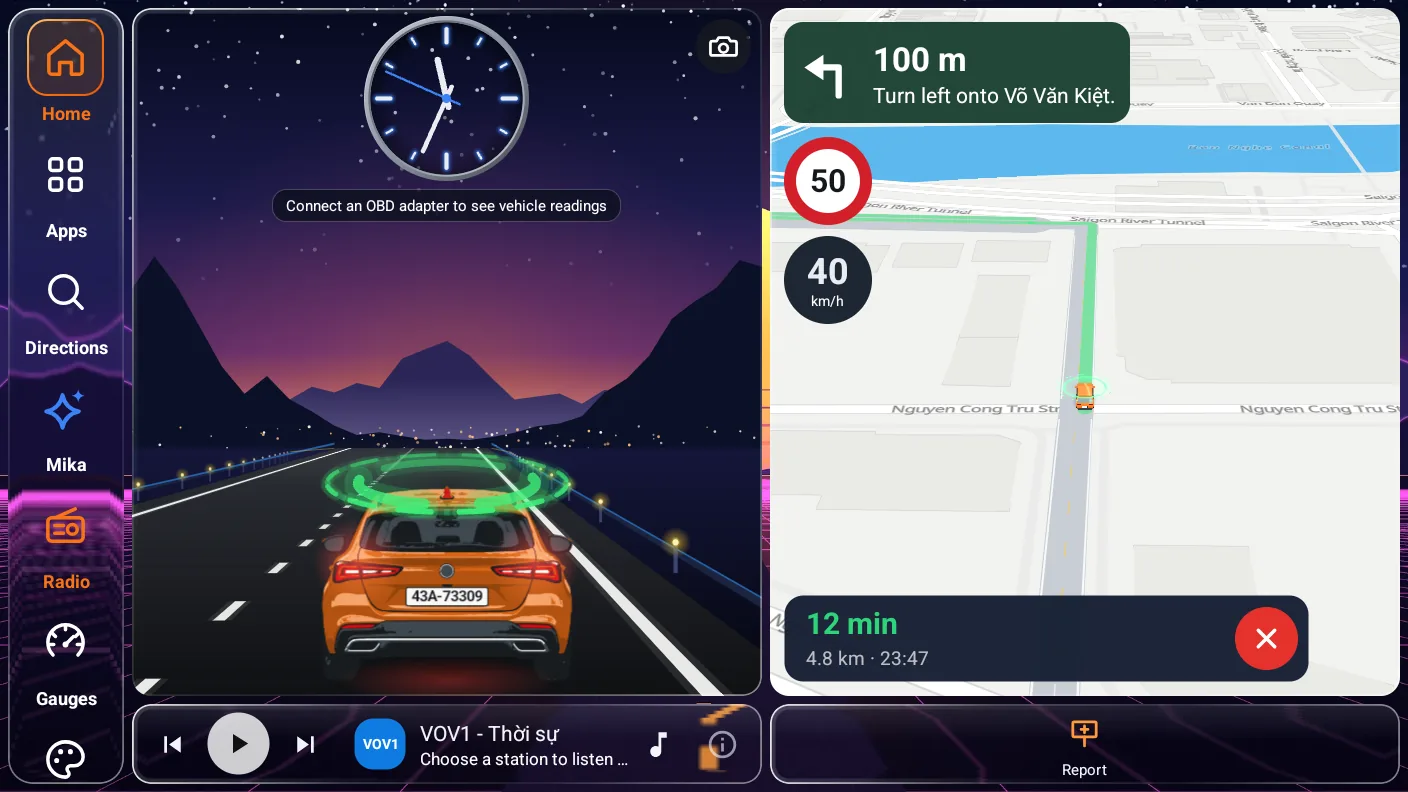
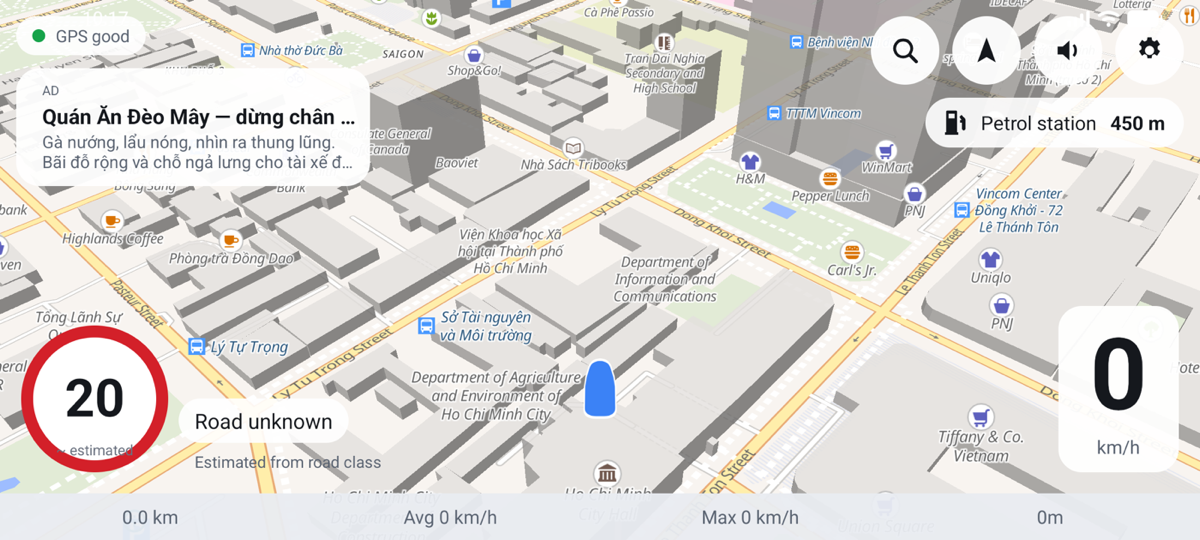
A home screen for your car: map, speed, the speed-limit sign, clock, music and dashcam on one screen. Install it from Google Play for automatic updates, or download the APK and install it directly.
Pick the app for your device. Every version is free to download, and the safety features are always free.

A home screen for your car: map, speed, the speed-limit sign, clock, music and dashcam on one screen. Install it from Google Play for automatic updates, or download the APK and install it directly.

Navigation and speed warnings on your phone, shown on the car screen through Android Auto.

Navigation and speed warnings on your iPhone, shown on the car screen through CarPlay.
Get the MapCar Installer (half a megabyte). Open it and it reads the head unit’s real specs — even when the Android version shown is wrong — then downloads and installs the right MapCar Launcher or MapCar for head units.
Follow these 4 steps in order. Each device only needs the permission once.
Download with Chrome. If Chrome warns the file “can harm your device”, tap Download anyway. The stock browser on many head units cannot open APKs.
Open the file manager (Files / File Manager) → Download folder → tap the .apk file. If it ends in .bin or .zip, rename it back to .apk.
If it says not allowed to install → tap Settings, turn on Allow from this source, then go back. Android 7 and older: Settings → Security → turn on Unknown sources.
Tap Install, open the MapCar Installer → tap Download and install on the app you want; it fetches the right build and installs it. Then press Home → pick MapCar Launcher → Always.
Still stuck?
Opened the link inside Zalo or Facebook? Tap ⋮ → Open in browser before downloading. In-app browsers often rename or block APK files.
Use a USB stick. Download the APK on a computer or phone, copy it to a USB stick, plug it into the head unit → file manager → USB → tap the .apk file.
“There was a problem parsing the package”? The unit may really run Android 6 or older — many head units show “Android 10/12” in Settings when they don’t. Install CPU-Z and check API Level: 23 (Android 6) — use the MapCar Installer, it picks the Android 6 build; below 23 cannot run MapCar.
Or not enough free storage. Keep at least 1 GB free, Settings → Storage, delete old videos, photos and APK files. Copy the .apk into internal storage (Download) before installing, not straight from USB.
The installer is only about 0.5 MB (the app it then fetches is about 100–170 MB). If yours is only a few KB, the download broke — try again on a steady connection.
Map data, navigation and speed limits currently cover Vietnam only.Read the installation guide
Install guide
Real screenshots from an Android 10 device. On a head unit the colours and wording may differ slightly, but the steps are the same.
When the download finishes, tap the download notification or open Files → Download → mapcar-installer.apk (about 0.5 MB) and tap Install. The first time, Android may say installs from this source are not allowed: tap Settings, turn on Allow from this source, then go back.
Any app that does not come from Google Play can trigger this: Play Protect hasn’t seen the MapCar Installer before, so it offers to send it to Google for a scan — not because the app is harmful. Tap Scan app and wait a few seconds for Google to finish, or tap More details → Install without scanning. Don’t choose Don’t install app. It may appear once more when MapCar Launcher installs in step 4 — do the same.
Tap Open. The installer reads the unit’s real Android, chip and GPU (under This head unit) and picks the right build — even when the Android version shown is wrong. Tap Download and install on MapCar Launcher (or MapCar for head units). The first time it opens Allow from this source for itself: turn it on and go back, the install carries on by itself.
Once downloaded (about 100–180 MB, with a progress bar and Cancel), Android asks whether to install the app: tap Install, then Open. The installer stays on the unit — open it later to see when an Update is available.
Allow location when asked. Press Home → pick MapCar Launcher → Set as default (or Always). Next, download the offline data over Wi-Fi — see the user guide.
Common questions
Yes. MapCar does not use Google Maps: the map is drawn by MapCar itself with MapLibre on OpenStreetMap data, so it looks the same whether or not Play Services is installed. Your position comes from the unit's own GPS through Android's LocationManager, so no Google services are needed.
Go to Android Settings → Apps → Default apps → Home app and select the original launcher, or simply uninstall MapCar Launcher. Your original launcher is never removed or modified.
Maps, navigation, alerts and all three themes are free. Reading your car's data through an OBD-II dongle comes with a 30-day free trial. After that, you can unlock PRO inside the launcher with a QR bank transfer (it activates as soon as your payment arrives) or by entering an activation code.
Yes — to load the map for new roads, search for places and calculate routes. Once the offline pack is downloaded, it uses hardly any data, because the map, search and routing all run on the unit.
Your trips never leave the unit. A location is sent only when you report a sign or incident to the community map, when you search or plan a route, and when map tiles are loaded for the area on screen. There is no account and nothing that identifies you. You will find the details on the Privacy page.