 Tiếng Việt
 English
 日本語
Speed limits — blank beats wrong
Uses the map's real maxspeed when there is one. When nothing is certain the sign stays blank and no warning sounds; turn on “Estimate” to infer it from road class and Circular 31/2019, always marked ~ estimated.
Map, speed, the speed-limit sign, clock, lunar calendar, music and dashcam on one screen. Install the APK and go — offline maps of all of Vietnam keep working without signal.
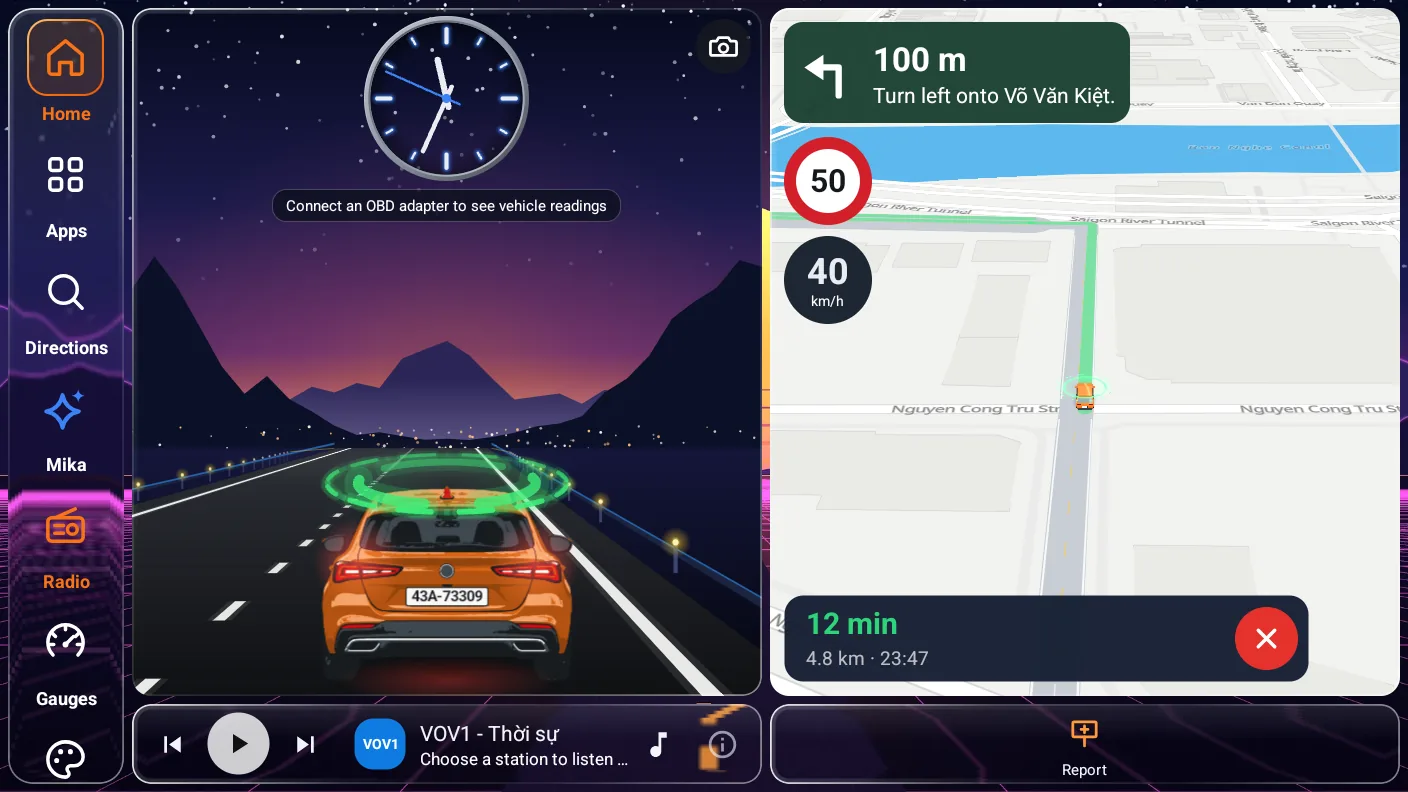
All worked out from GPS and map data. Plug in an OBD-II dongle if you want readings straight from the car.
Uses the map's real maxspeed when there is one. When nothing is certain the sign stays blank and no warning sounds; turn on “Estimate” to infer it from road class and Circular 31/2019, always marked ~ estimated.
Download 145 MB once for the whole country. Until then MapLibre caches up to 512 MB of roads you've driven.
One tap to report. Signs appear once 3+ devices agree; incidents expire on their own.
Records, reads signs and measures the gap to the car ahead. Processed on the device, never uploaded.
Press the voice key on the steering wheel or the mic button, then speak to find a route or open settings.
ELM327 over Bluetooth or WiFi. Spoken alerts for overheating or a Check Engine light. 30-day trial.
30/20/12-second pauses between reminders, instant when you speed up further. Never two voices at once.
Satellite view · Pro
Tap the Map type button on the right and pick Satellite: the base map turns into real satellite photos, with street names, your route and signs still on top. It makes the gate, the car park or a narrow lane easy to spot when you arrive somewhere new.
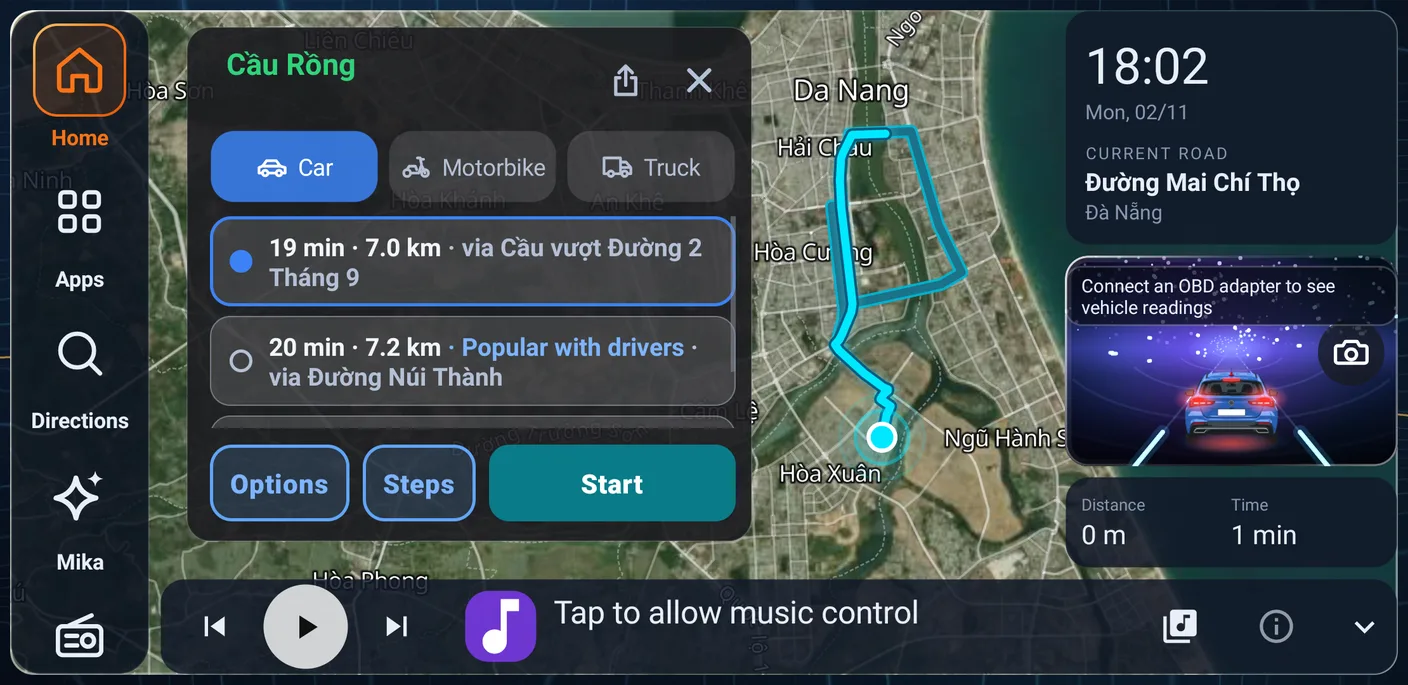
Roofs, trees, road markings and car parks look the way they do in real life. On head units, phones, the Launcher, iPhone, CarPlay and Android Auto.
Satellite imagery is far too large to download in advance: the app loads each area while you look at it, over 4G or Wi-Fi. It uses more mobile data than the regular map.
Lose signal, enter a tunnel or open the app without Internet and it uses the regular map (the offline map if you downloaded it) — navigation and alerts carry on.
Four themes · all free
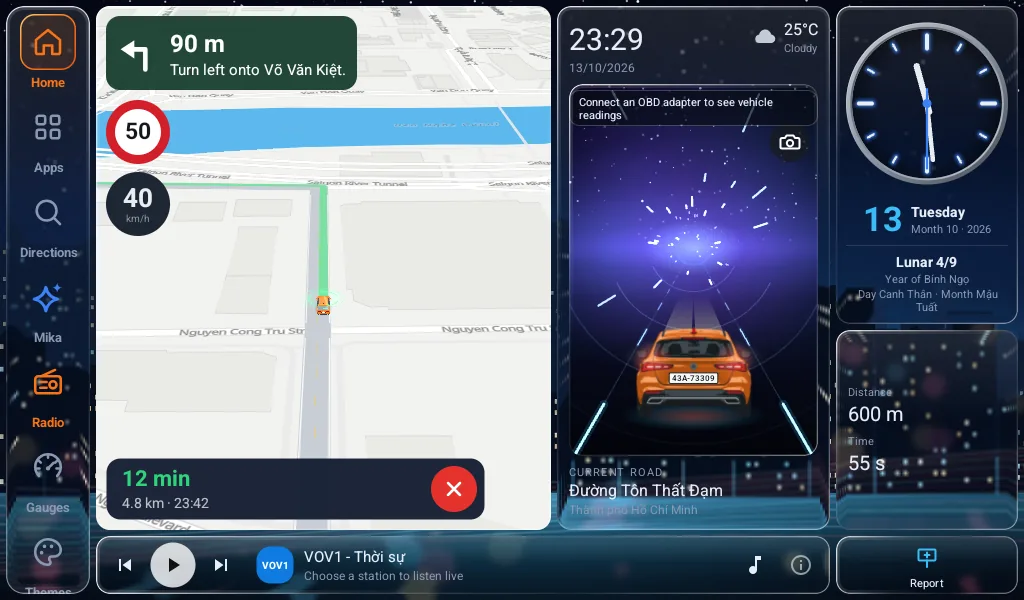
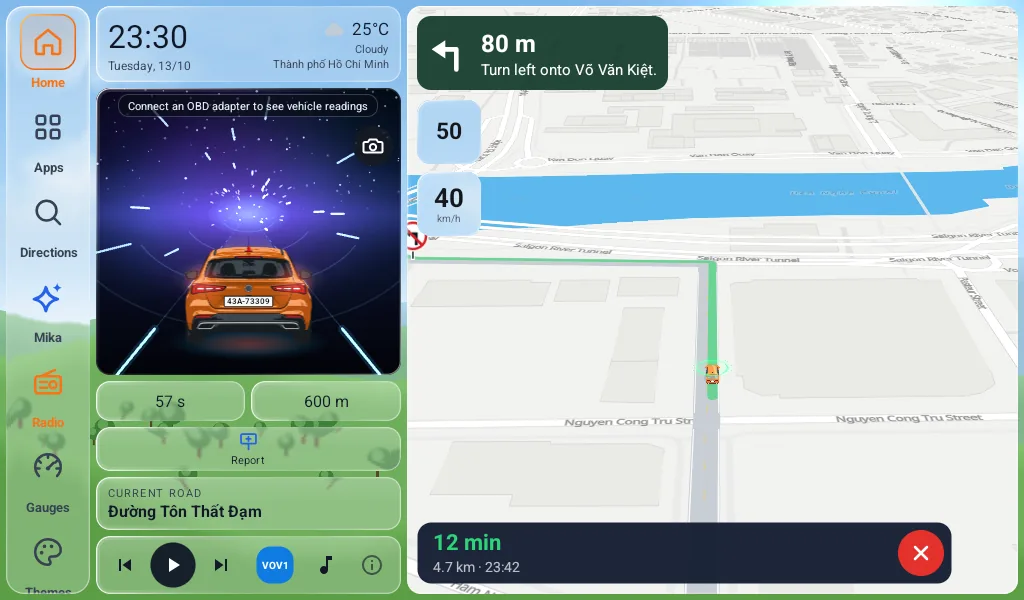
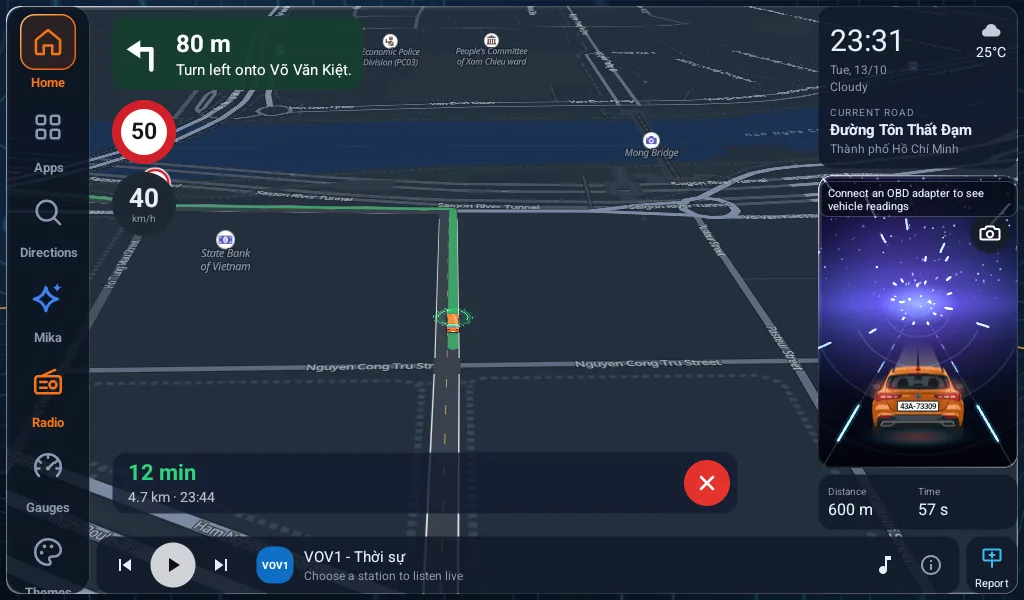
Apple CarPlay · Android Auto
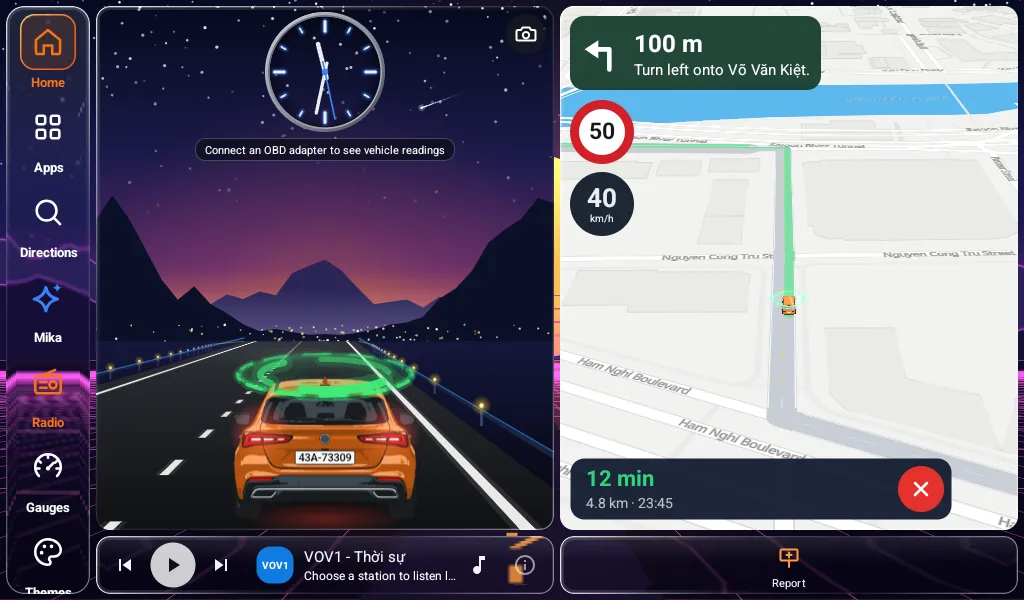
If your car has CarPlay or Android Auto, no new head unit needed. MapCar on iPhone and Android shows up right on the car display — map, speed-limit sign and turn-by-turn directions.
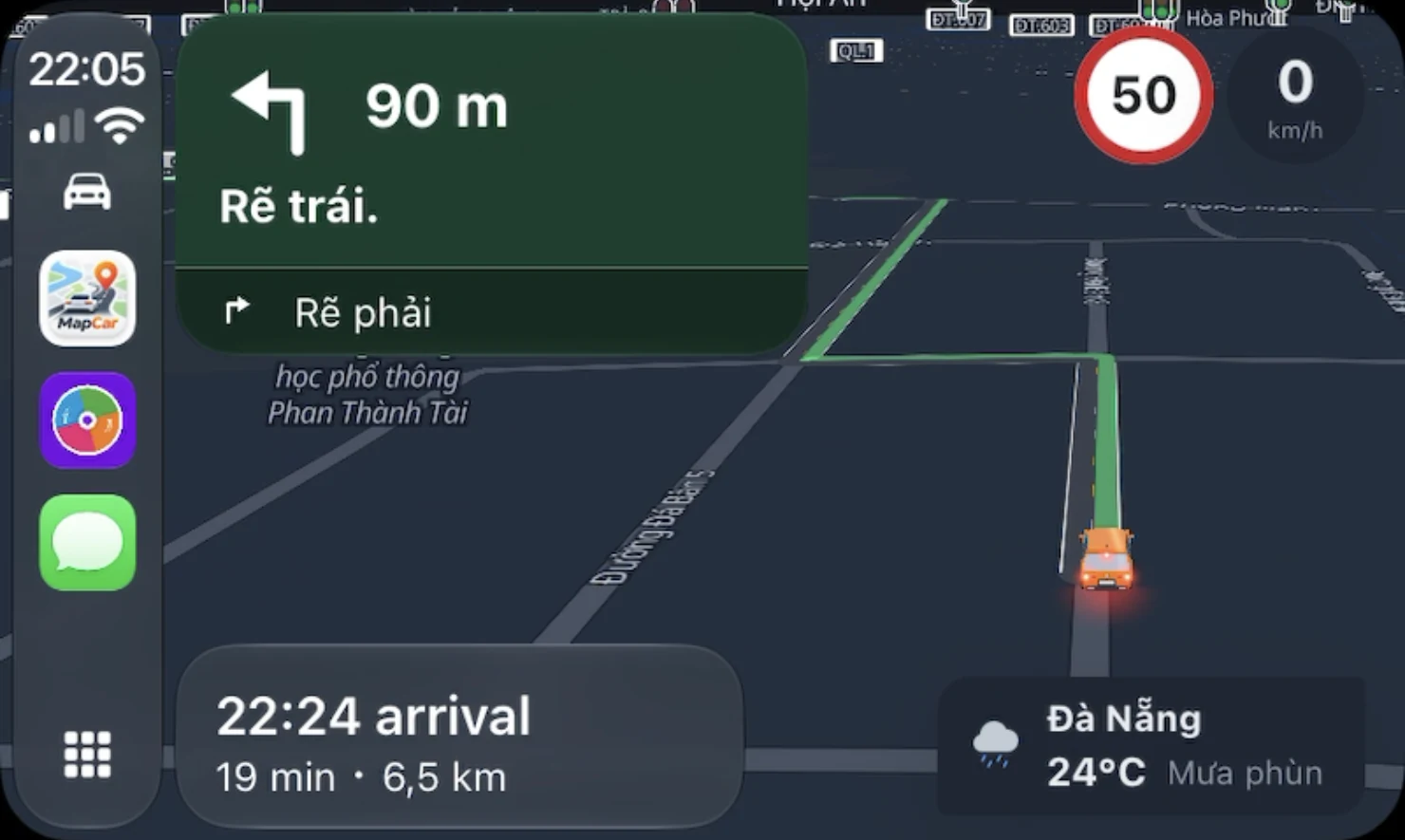
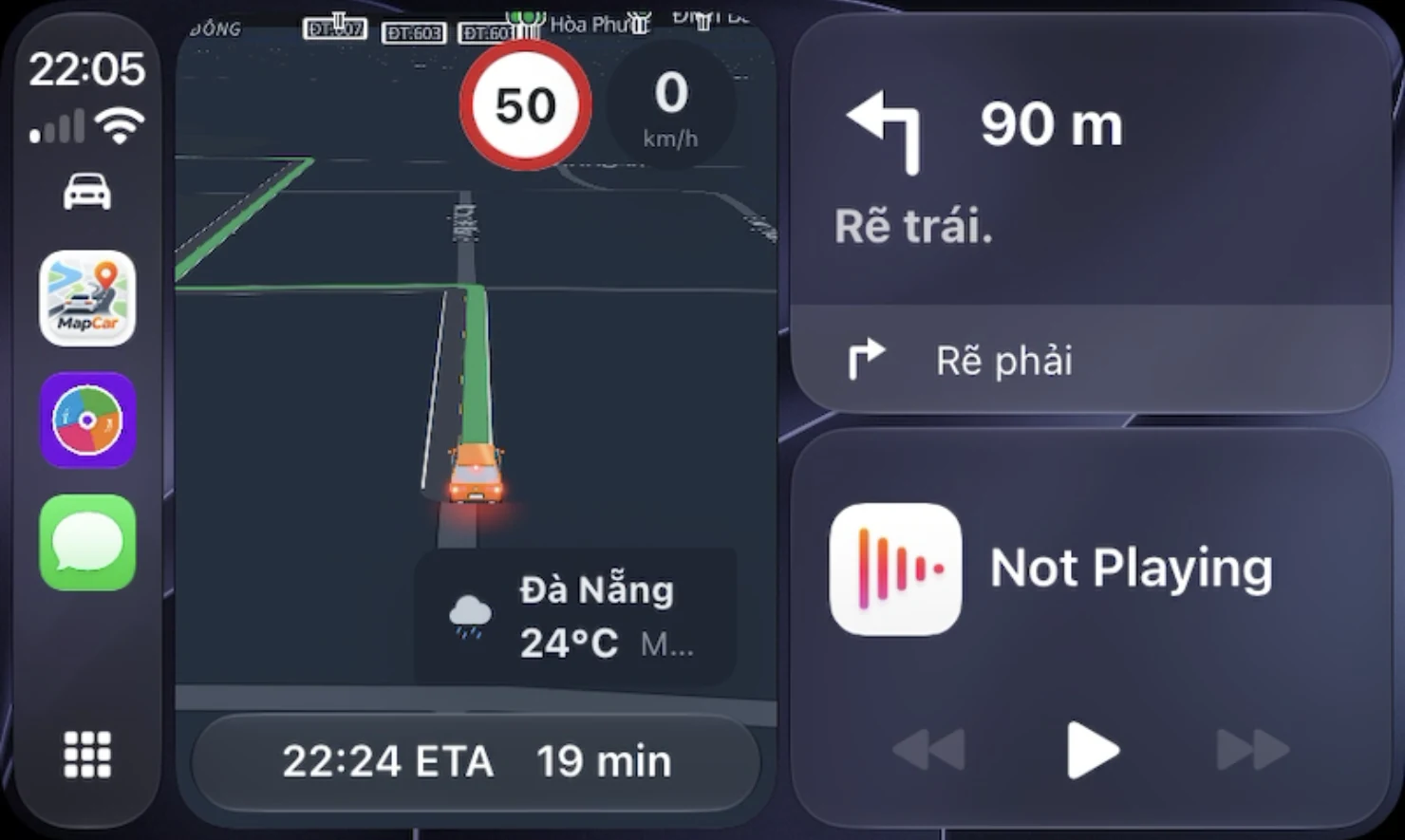
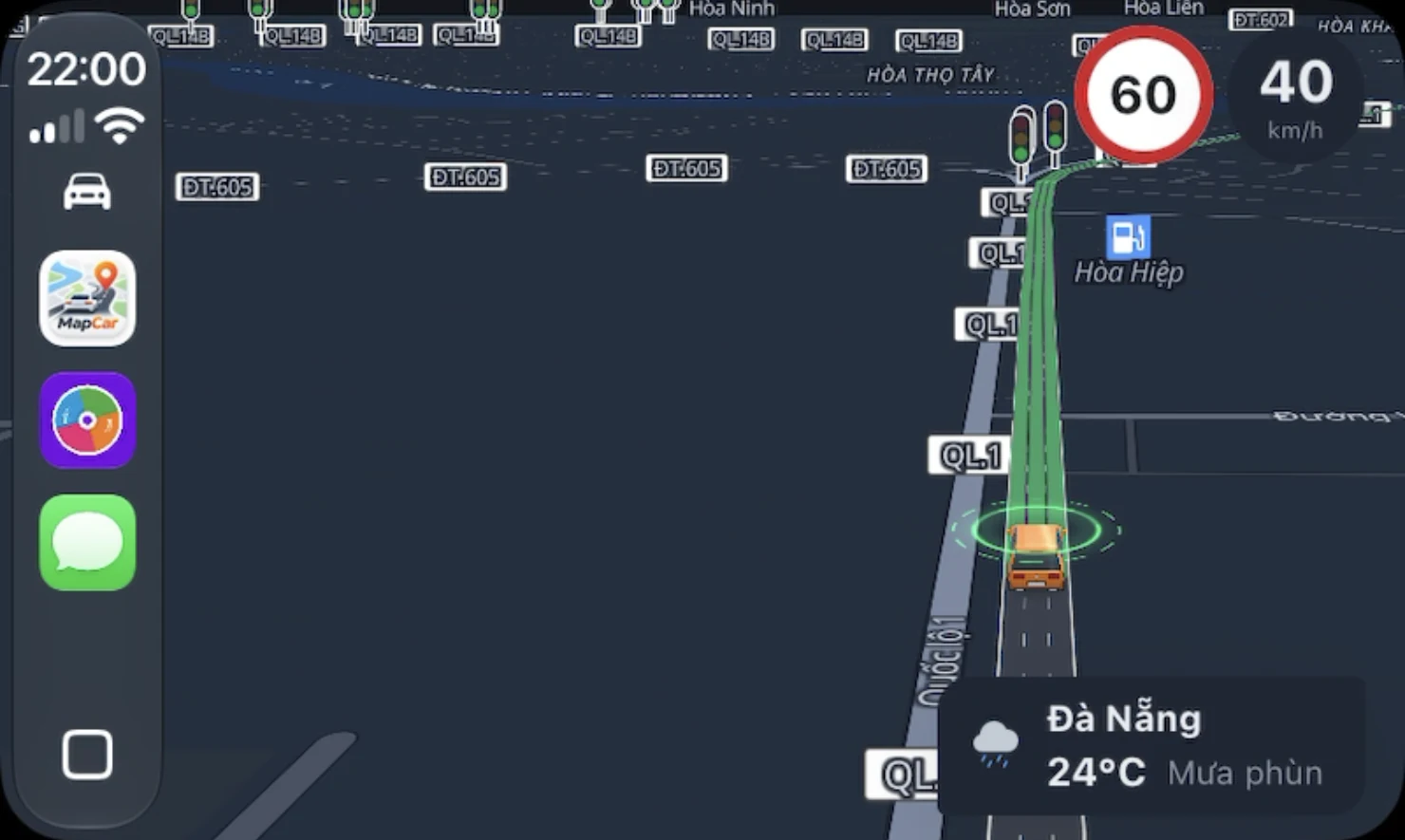
Open MapCar full screen on the car display, or follow the next turn on the Dashboard next to music and news.
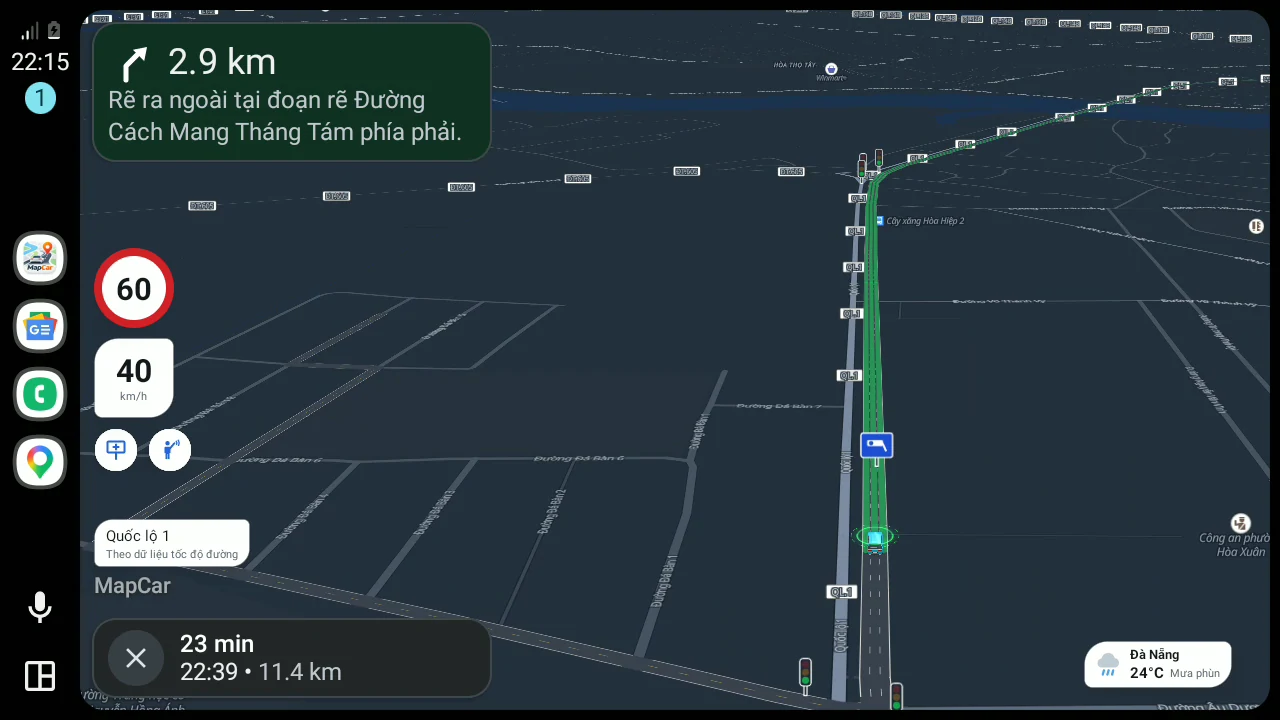
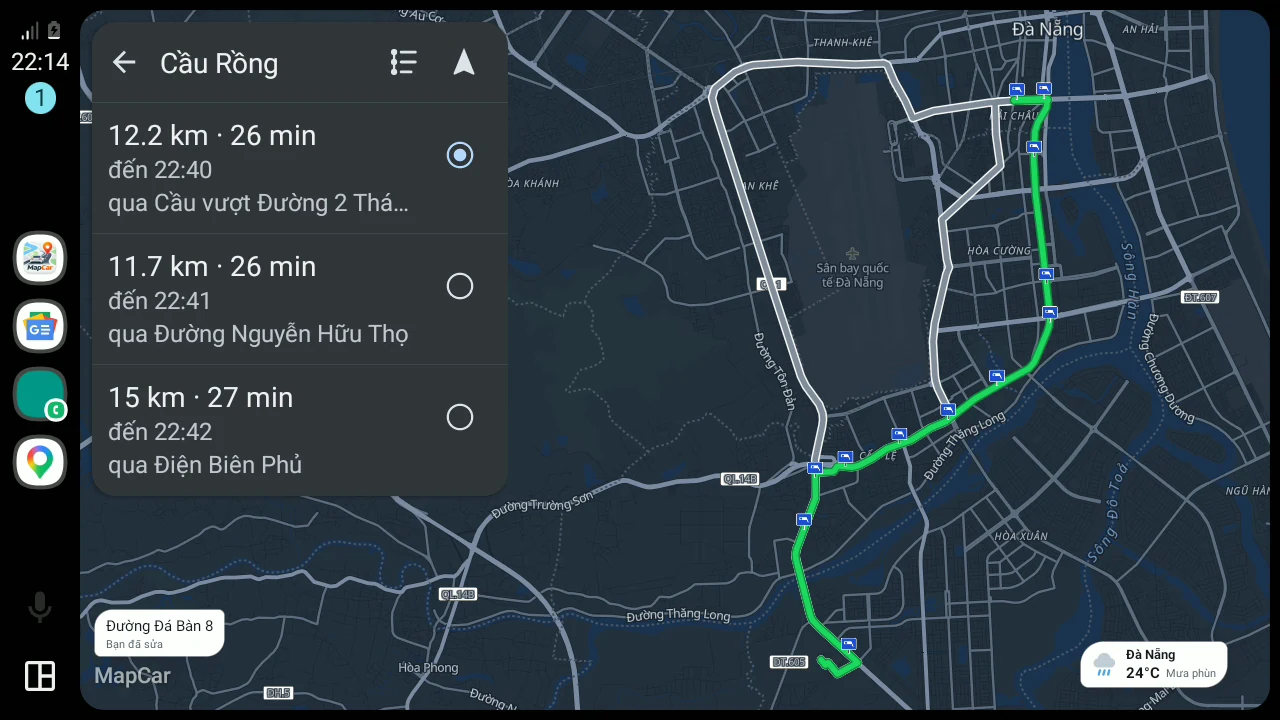
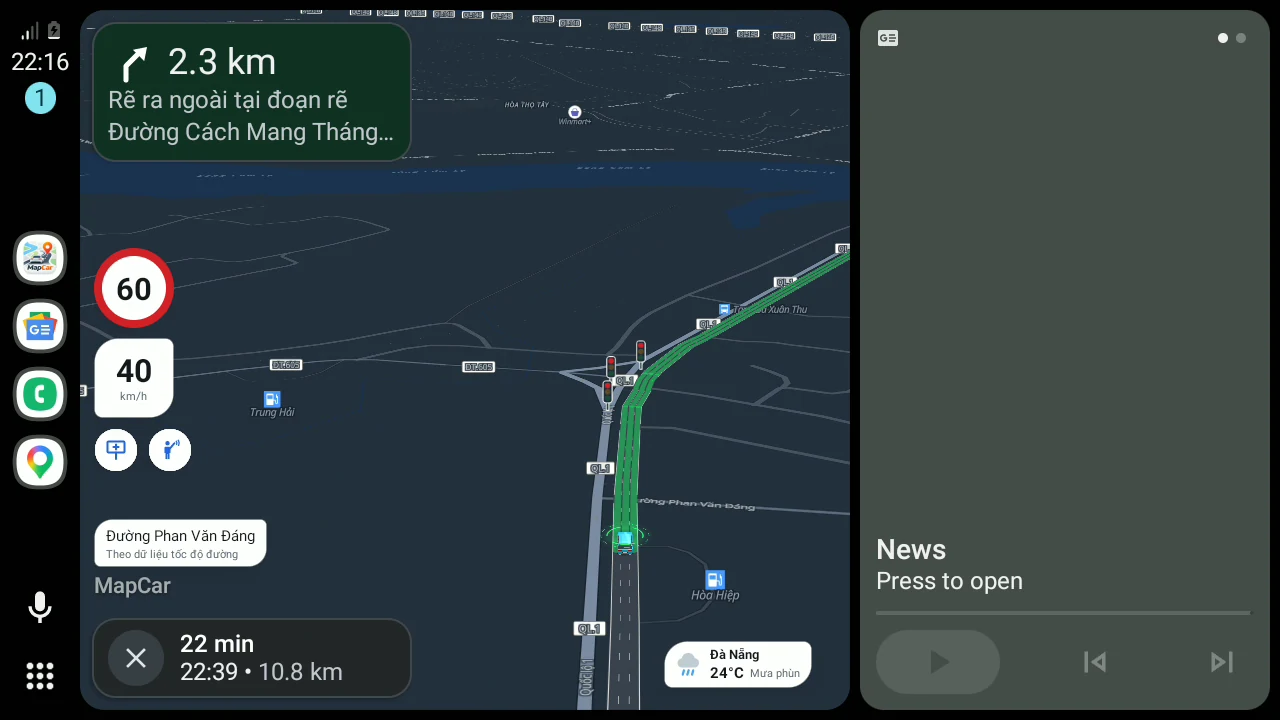
Full screen or split next to your music. Pick one of three routes before you go.
Use the MapCar phone app (not MapCar Launcher). Offline maps downloaded on the phone work on the car screen too.
MapCar Launcher replaces the home screen. Install the APK directly.
Get the APKThe Google Play version, for phones and cars with Play Services.
The App Store version for iPhone, also on CarPlay.
App StoreEvery install starts a 30-day Pro trial — no card, no sign-up. When it ends, every safety feature keeps working.
Everything you need to drive safely every day.
Billed yearly, cancel renewal any time
Everything in Free, plus:
| Feature | Free | Pro |
|---|---|---|
| Maps, navigation, Vietnamese voice | ||
| Offline map of all of Vietnam145 MB, downloaded once | ||
| Speeding alerts, rest reminder | ||
| Speed signs, enforcement cameras, traffic lightsAlong the road you drive and the route you pick | needs data | |
| Nationwide signs, cameras, lights, speeds without signalEncrypted data stored on the device | — | purchased* |
| Community reports, traffic jams | ||
| CarPlay, Android Auto | ||
| Dashcam: recording, sign reading | ||
| Forward vehicle detection, tailgating warning | — | |
| Car data from an OBD-II adapterSpeed, RPM, temperature, fuel, warning lights | — | |
| Personal greeting, passenger welcomeGreets you by name | — | |
| Satellite imageryOnly with an Internet connection, 2D map | — | needs Internet |
| Licence plate, brand logo on the virtual car | — | |
| ThemesPremium, holidays, YouTube beside the map (Launcher) | 4 basic layouts | |
| Music from USB, SD cardMapCar Launcher | — |
Referral code
Everyone has their own referral code in Pro plan → Referral code tab. When a friend enters your code and buys Pro, you both get 30 extra days. No limit on how many people, and you can refer even before buying Pro or during the trial.
Open Pro plan → Referral code. Each device has one fixed 6-character code; copy or share it in one tap.
K7M4PQThe person you invite enters the code in the same tab, before buying or within 7 days after.
Once your friend’s purchase goes through, you both get 30 days of Pro. On the trial, the days are added to your trial; on a paid plan, they start when the current plan ends.
Community
MapCar takes reports from drivers in all 34 provinces and cities: speed signs, enforcement cameras, jams, crashes, flooding… A sign shows only once three different devices confirm it; incidents expire on their own after 30–60 minutes.
Join the Facebook group to ask about setup, show off your car's screen and suggest features.
Download the MapCar Installer (0.5 MB) on the head unit: it reads the unit’s real Android, chip and GPU, then downloads and installs the right build. Units with Google Play can install from Play. When done, press Home → pick MapCar Launcher → “Always”.
Follow these 4 steps in order. Each device only needs the permission once.
Download with Chrome. If Chrome warns the file “can harm your device”, tap Download anyway. The stock browser on many head units cannot open APKs.
Open the file manager (Files / File Manager) → Download folder → tap the .apk file. If it ends in .bin or .zip, rename it back to .apk.
If it says not allowed to install → tap Settings, turn on Allow from this source, then go back. Android 7 and older: Settings → Security → turn on Unknown sources.
Tap Install, open the MapCar Installer → tap Download and install on the app you want; it fetches the right build and installs it. Then press Home → pick MapCar Launcher → Always.
Still stuck?
Opened the link inside Zalo or Facebook? Tap ⋮ → Open in browser before downloading. In-app browsers often rename or block APK files.
Use a USB stick. Download the APK on a computer or phone, copy it to a USB stick, plug it into the head unit → file manager → USB → tap the .apk file.
“There was a problem parsing the package”? The unit may really run Android 6 or older — many head units show “Android 10/12” in Settings when they don’t. Install CPU-Z and check API Level: 23 (Android 6) — use the MapCar Installer, it picks the Android 6 build; below 23 cannot run MapCar.
Or not enough free storage. Keep at least 1 GB free, Settings → Storage, delete old videos, photos and APK files. Copy the .apk into internal storage (Download) before installing, not straight from USB.
The installer is only about 0.5 MB (the app it then fetches is about 100–170 MB). If yours is only a few KB, the download broke — try again on a steady connection.